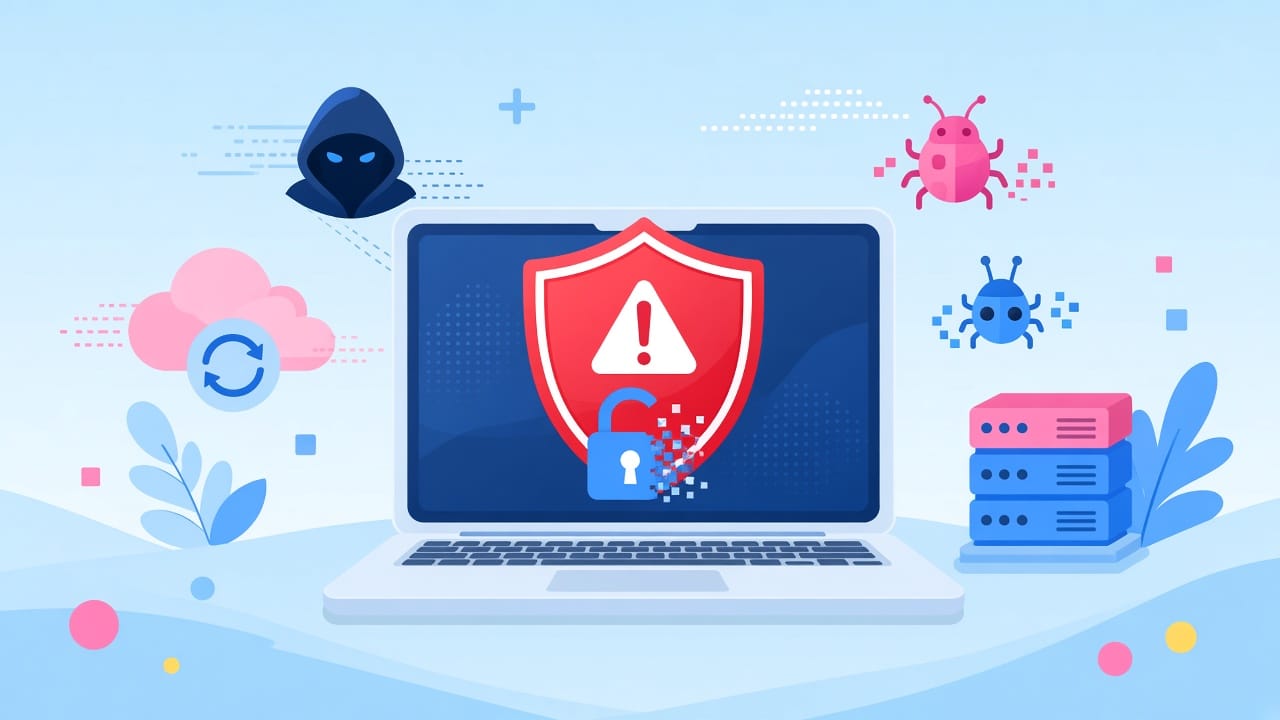
If your WordPress site suddenly looks wrong, sends spam, or Google warns visitors away, you may be dealing with a compromise—not a random glitch. For Sri Lankan service businesses, having your WordPress site hacked can mean lost leads, damaged trust, and days of downtime while customers look elsewhere.
This guide covers clear warning signs, a calm recovery sequence, and how to reduce repeat attacks—practical steps so you can get the site usable again.
WordPress site hacked? Common signs to check
Not every odd symptom means malware. Hosting outages, plugin conflicts, and DNS mistakes can look similar. Still, these patterns deserve urgent attention:
1. Unexpected redirects or fake pages
Visitors land on your domain but are sent to gambling, pharma, or unrelated sites. Sometimes only mobile users or Google visitors are redirected, so you may not see it when you open the site yourself.
2. Strange admin users or locked-out access
New administrator accounts appear that nobody created. Or your usual login fails while someone else still has access. Check Users in wp-admin when you can get in—or ask your host for a database user list if you cannot.
3. Spam content, SEO spam, or “injected” links
Hidden pages targeting foreign keywords, odd posts you did not write, or footer/sidebar links you never added are classic signs of SEO spam. Search Google for site:yourdomain.lk and scan for unfamiliar URLs.
4. Browser or Google Safe Browsing warnings
Chrome, Firefox, or Google Search Console may flag the site as deceptive or containing malware. That warning can crush local lead flow overnight—especially for clinics, hotels, and service shops that rely on search.
5. Sudden spike in resource use or email abuse
Hosting CPU/RAM jumps, the site times out, or your domain starts sending spam. Neighbours on shared hosting sometimes get affected too, so hosts may suspend the account until it is cleaned.
6. Defacement, odd plugins, or changed core files
Homepage replaced or blank; unknown plugins/themes; core files with unexpected timestamps. Attackers often touch index.php, theme files, or .htaccess.
If several of these appear together, treat the site as compromised and move to containment—not cosmetic fixes alone.
What to do first (containment)
Before you “just reinstall the theme,” slow down and limit damage:
- Put the site in maintenance mode or temporarily take it offline if it is actively harming visitors.
- Change all passwords—WordPress admins, hosting panel, FTP/SFTP, database, and connected email. Use unique passwords and enable 2FA where available.
- Export a forensic copy of the current files and database (even if infected). You may need it for comparison. Keep it separate from clean backups.
- Scan devices you use to manage the site. A stolen laptop password or an infected PC can re-infect a cleaned site.
- Notify your host that you suspect malware. Many providers can isolate the account or point you to quarantine tools.
Do not delete everything blindly. You may need logs, timestamps, and a known-good backup to restore services like bookings, WooCommerce orders, or contact forms.
A practical recovery checklist
Recovery is usually a sequence: identify → clean or restore → harden → monitor.
Step 1: Confirm with more than one signal
Use at least two sources when possible:
- Google Search Console security issues / Safe Browsing status
- Hosting malware scanner (if offered)
- A reputable WordPress security plugin scan (from a clean admin session)
- Manual review of recent file changes and new users
False positives happen. Cross-check before wiping production data.
Step 2: Prefer a clean restore when you have a good backup
If you have a verified clean backup from before the compromise:
- Note the approximate infection date (Search Console, file dates, spam publish dates).
- Restore files + database from the last clean point.
- Immediately update WordPress core, themes, and plugins.
- Rotate all credentials again after restore.
- Re-check for leftover admin users and unknown plugins.
Backups only help if they are clean and complete. A backup taken after infection can restore the malware too.
Step 3: Clean in place when restore is not an option
When you lack a clean backup (or cannot lose newer orders/content):
- Remove unknown admin users and reset remaining passwords.
- Delete unused themes/plugins; replace remaining ones from official sources.
- Replace WordPress core files with a fresh copy of the same version (carefully, or via host tools).
- Inspect
wp-config.php,.htaccess,index.php, anduploadsfor malicious code or odd PHP files. - Clean the database of spam posts, options rows with injected scripts, and rogue cron events.
- Reinstall critical plugins from wordpress.org or trusted vendors—not from random “nulled” copies.
This work is detailed. If the site is a lead engine for your business, professional cleanup often costs less than weeks of trial and error.
Step 4: Clear caches and ask Google to review
After cleaning:
- Clear site, CDN, and browser caches.
- Resubmit key URLs in Search Console.
- Request a security review if Safe Browsing flagged the site.
- Watch analytics and server logs for repeat odd traffic.
Step 5: Harden so it does not happen again
Most WordPress compromises still come from weak passwords, outdated plugins/themes, nulled software, or insecure hosting setups. Practical hardening includes:
- Keep core, themes, and plugins updated—or remove what you do not use
- Strong unique passwords + 2FA for admins
- Limit login attempts; prefer SFTP over plain FTP
- Sensible file permissions; disable unused PHP execution in uploads where possible
- Reliable offsite backups you have actually tested restoring
- Avoid pirated themes/plugins—they are a frequent malware source
Security is not a one-time plugin install. It is maintenance plus good hosting hygiene.
Sri Lanka SME context: why speed matters
Many local businesses use WordPress for bookings, hotel enquiries, menus, tuition leads, and shop catalogues. When Google flags the site or redirects kick in, phones go quieter even if the shop is open.
Practical tips:
- Keep hosting logins with more than one trusted person—not only on one phone.
- Store backups somewhere reachable without the hacked server.
- If you take payments or store customer data, document what you restored and when the site was safe again.
- Prefer help available in Sri Lanka time zones when the site is down.
When to call for help
DIY cleanup can work for a simple brochure site with a clean backup. Call a professional if you see:
- Persistent reinfection after cleaning
- WooCommerce or membership data you cannot risk losing
- Google blacklisting that is not clearing
- Multiple sites on one hosting account infected together
- No recent clean backup
BK DevOps helps Sri Lankan businesses with WordPress malware cleanup, secure recovery, and ongoing site care—alongside web design, hosting, and SEO. If your site shows the warning signs above, get in touch, and we can assess what needs cleaning versus restoring, then help you lock the doors afterwards.
Leave a Reply